Essayez gratuitement Zoho CRM ! Pendant 30 jours, profitez d’un accès complet 100 % gratuit, sans engagement et sans carte de crédit. C’est l’occasion idéale de découvrir tout ce que Zoho peut faire pour la croissance de votre entreprise.

🚀 Obtenez une estimation claire de votre projet ! 🚀

🚀 Obtenez une estimation claire de votre projet ! 🚀

Zoho CRM extension

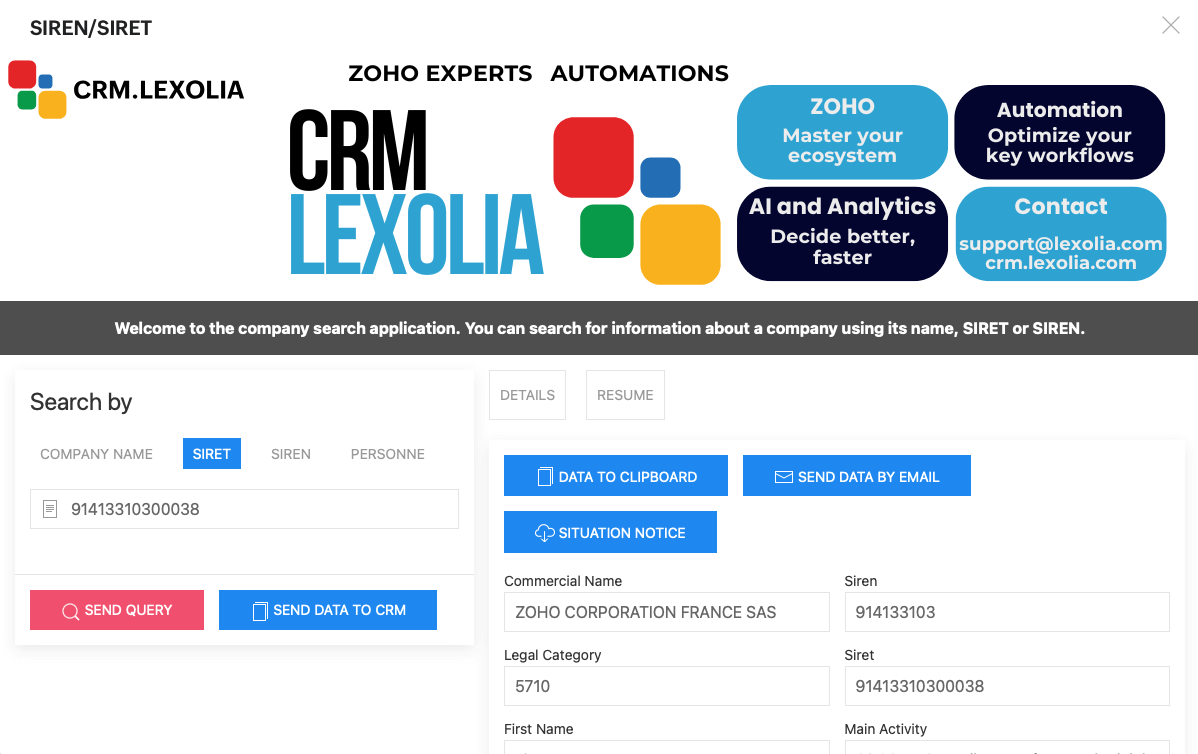
Welcome to the company search application. You can search for information about a company using its name, SIRET or SIREN.

🇫🇷 French users go that page : French documentation

Lexolia SIREN-SIRET for Zoho CRM

What is this extension?

This extension allows you to automatically enrich your company records in Zoho CRM with official data from the INSEE SIRENE directory.

Smart search

  • Search by company name
  • Search by SIRET number
  • Search by SIREN number
  • Search by first and last name (individuals)

Enriched data

  • Legal information: denomination, legal form
  • Activity: NAF code, business sectorĂ©
  • Address: headquarters and establishments
  • Status: active, closed, collective procedures

Data export

Copy information to clipboard or directly to your CRM records.

Email sharing

Send company data by email with automatic formatting.

Situation report

Direct access to official INSEE documents for each establishment.

Support and assistance

Our support team is here to help you use the Lexolia SIREN-SIRET Extension for Zoho CRM.

Direct contact

Contact our support team: support@lexolia.com

Frequently asked questions

  • How to get an INSEE API key?
  • What to do if searches don’t work?
  • How to resolve authorization errors?
  • Zoho custom fields configuration

Diagnostic tools

If you encounter problems, use the debug tools available in the main application:

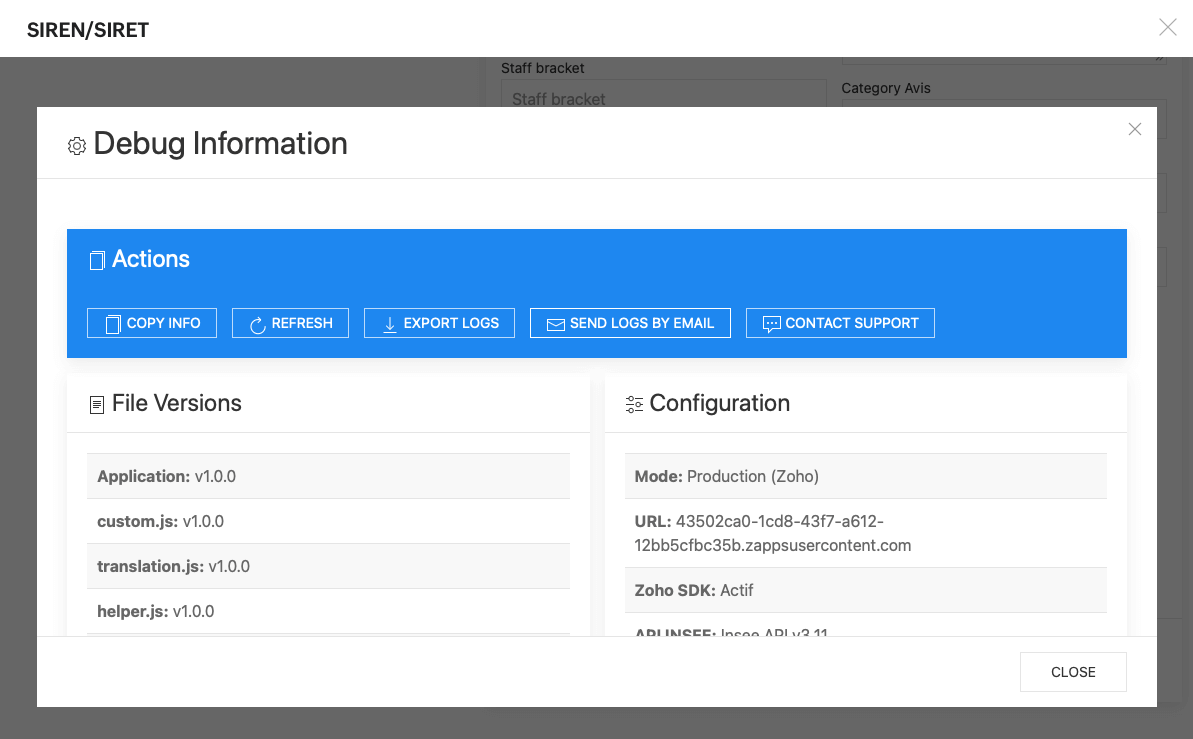
Debug Modal

Access system information and logs from the « Debug » button in the application.

API Logs

Check API requests and responses to identify problems.

System information

Version, browser, platform and current configuration.

Common problems

« Invalid API Key » error
Check that your INSEE API key is correctly configured and active. See steps 10-20 of this guide.
No search results
Check spelling, try company name variants, or use SIRET/SIREN number if available.
Data not copied to Zoho CRM
Make sure custom fields are properly configured in your Zoho CRM (steps 1-9).

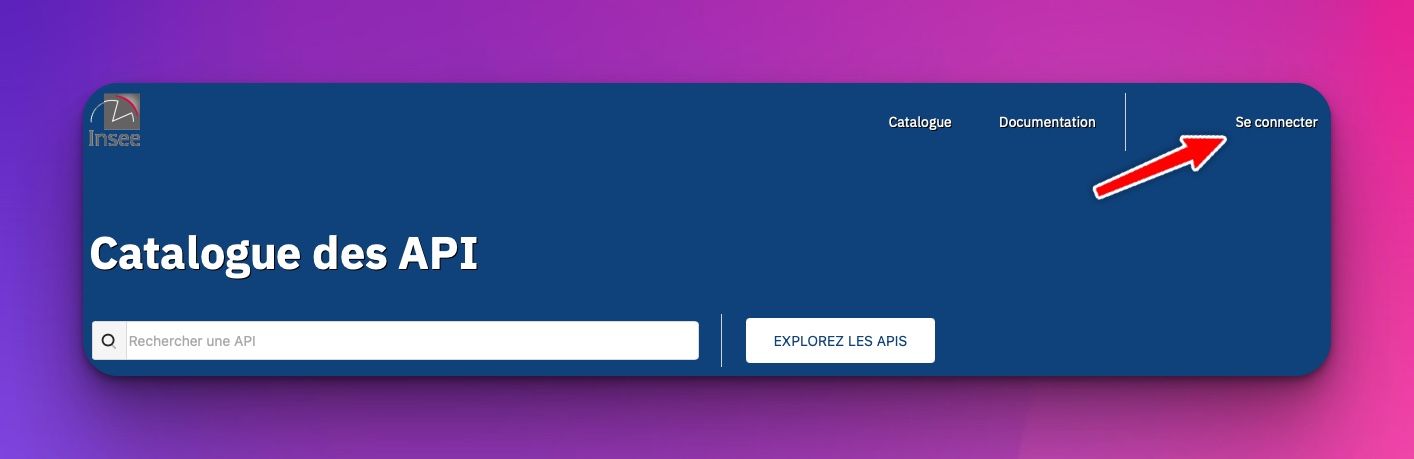
STEP 1

Go to the URL: https://portail-api.insee.fr/ and click on `Connexion`

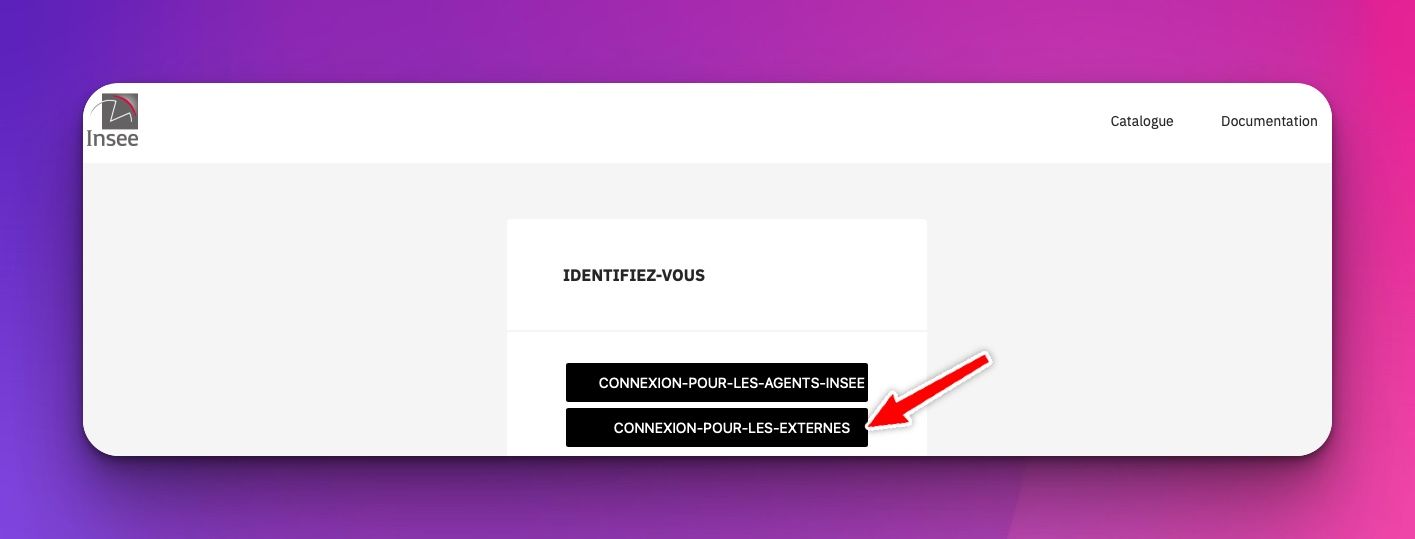
STEP 2

Click on `CONNEXION-POUR-LES-EXTERNES`

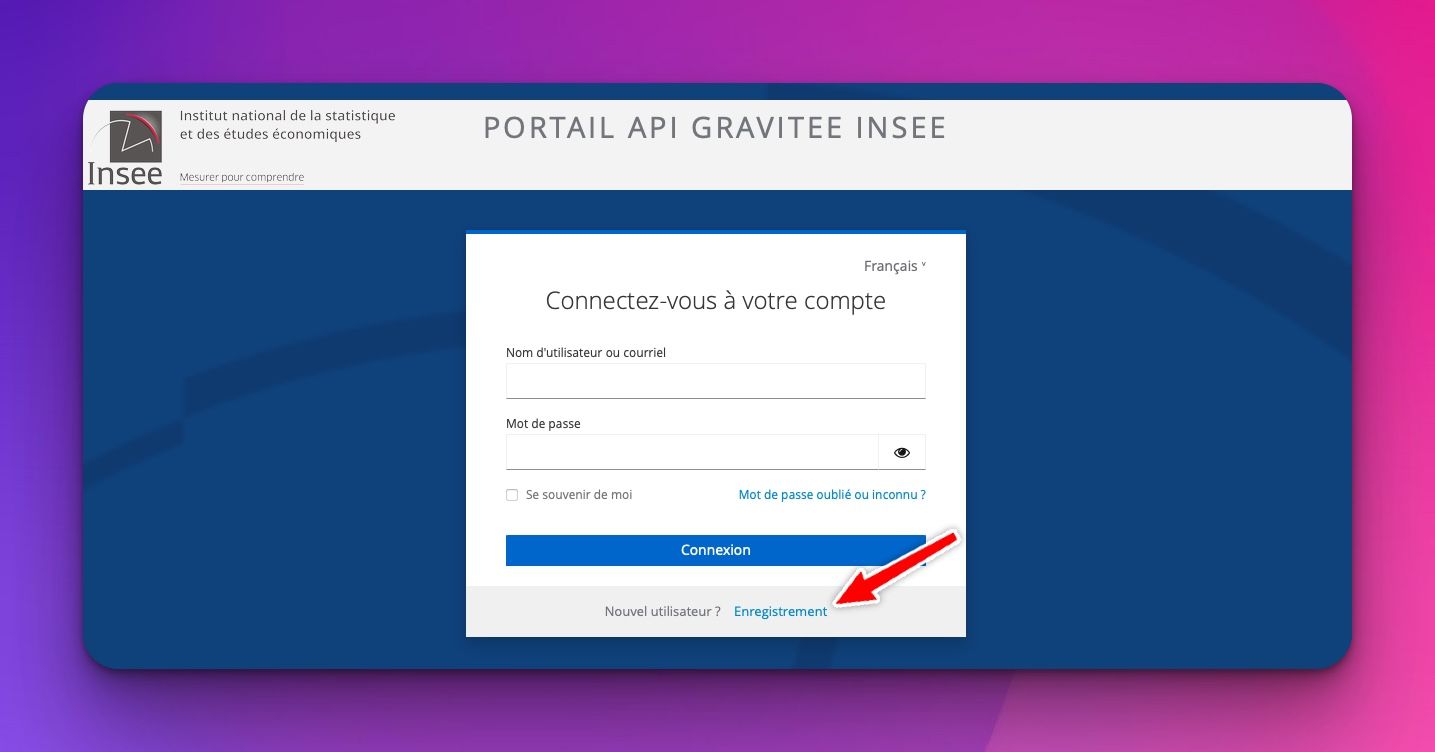
STEP 3

Click on `Enregistrement`, for sign up.

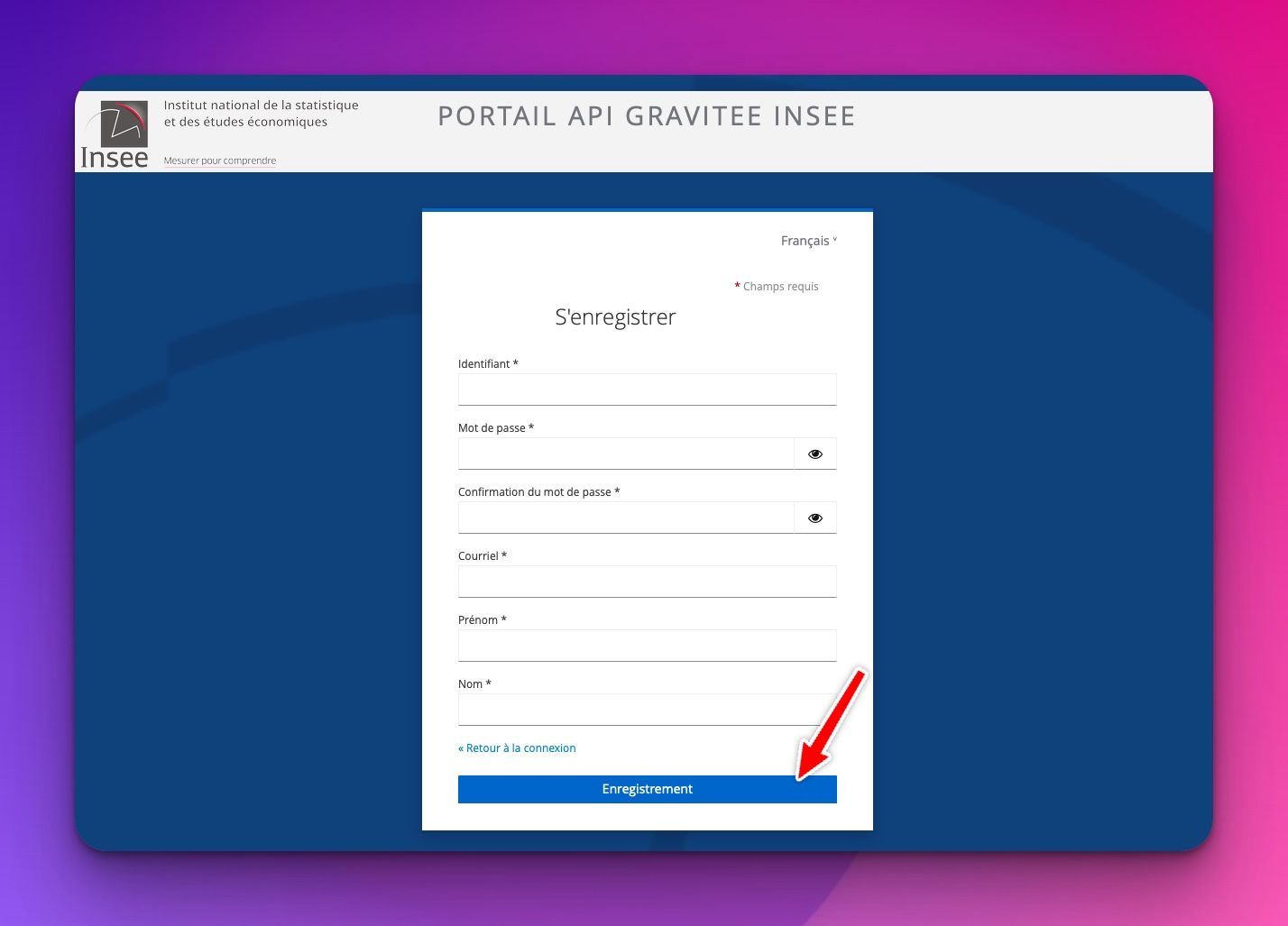
STEP 4

Complete the form then click on `Enregistrement`

STEP 5

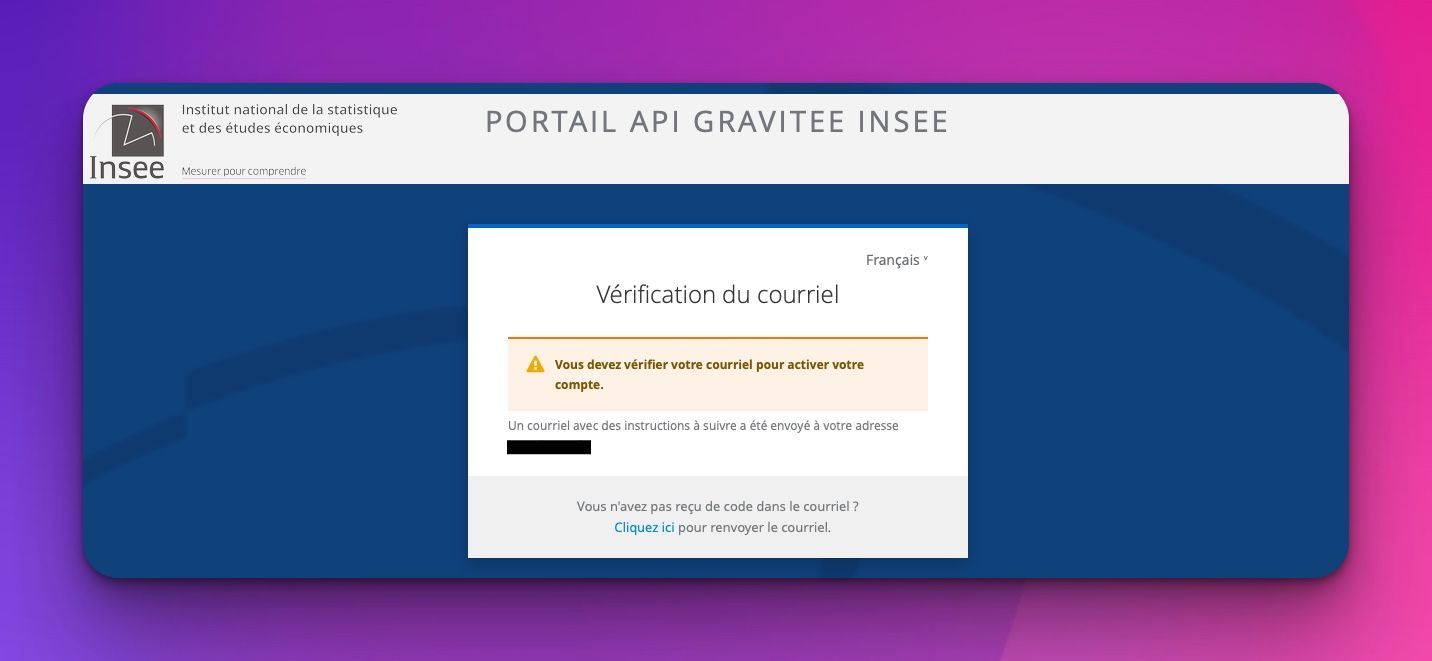
A message from portail-api@insee.fr is sent to the declared email address. Click on the link received to confirm the email. This link redirects to the login page.

STEP 6

Click directly on `CONNEXION-POUR-LES-EXTERNES`

STEP 7

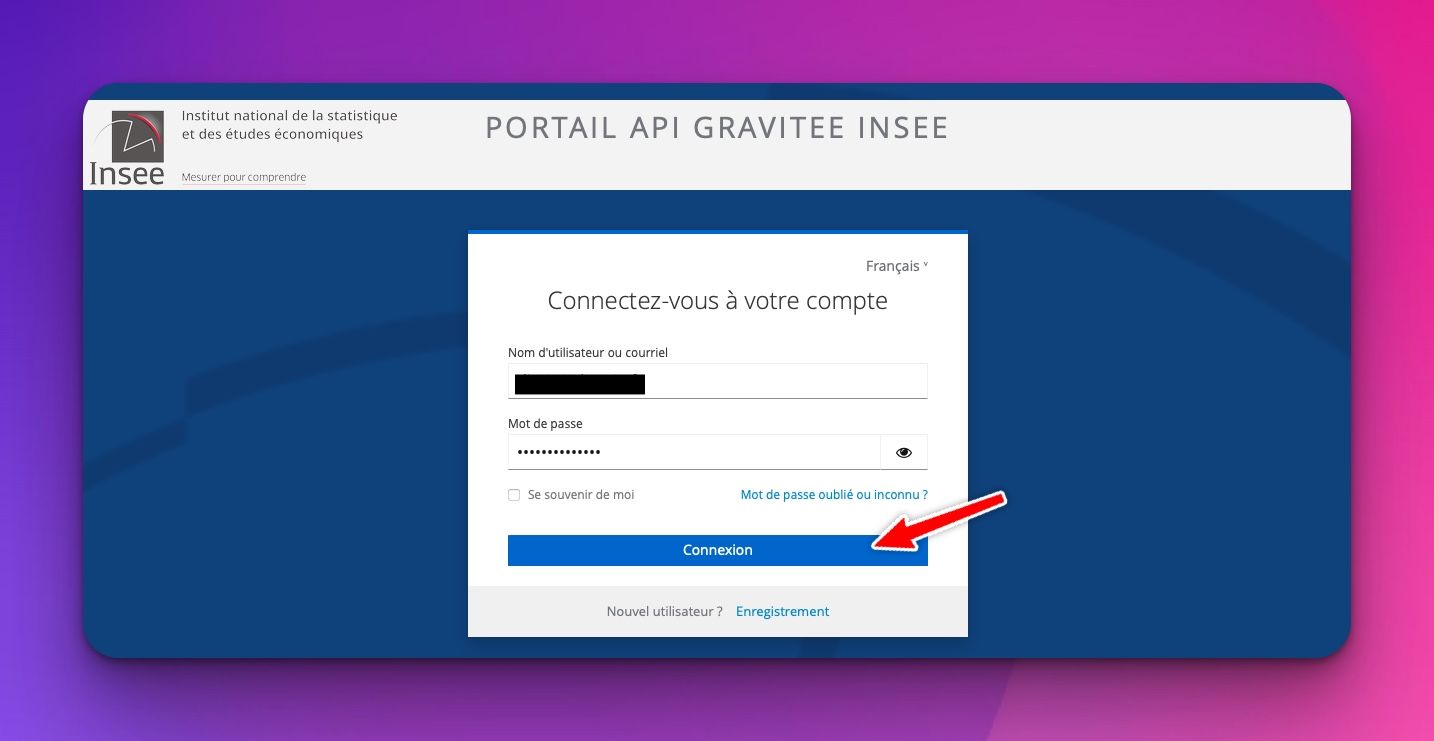
Enter account settings and then click `Connexion`

STEP 8

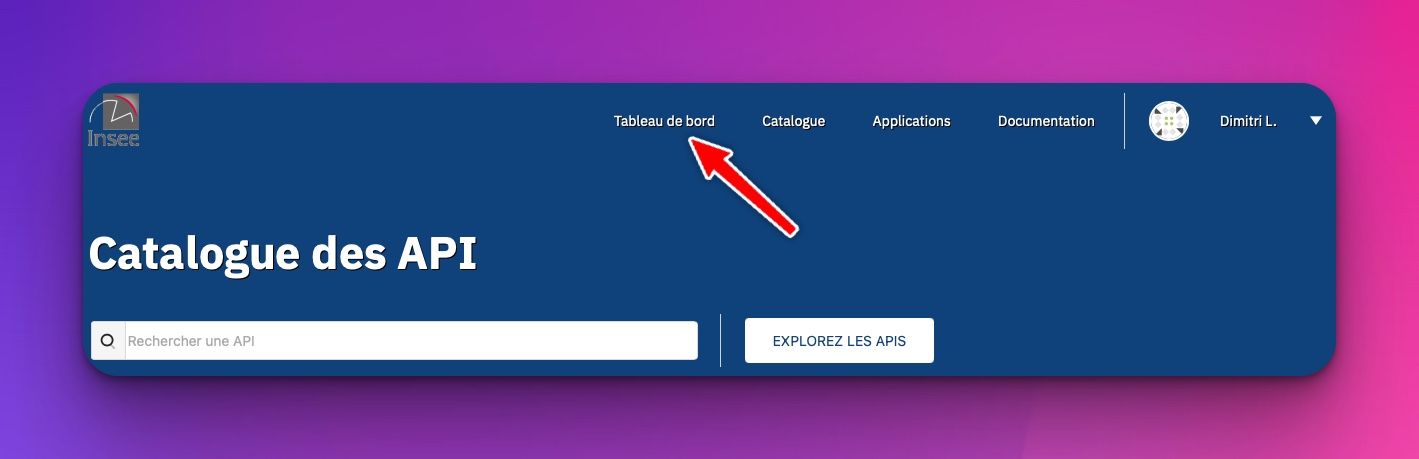
Once logged in, click on `Tableau de bord` in the top menu.

STEP 9

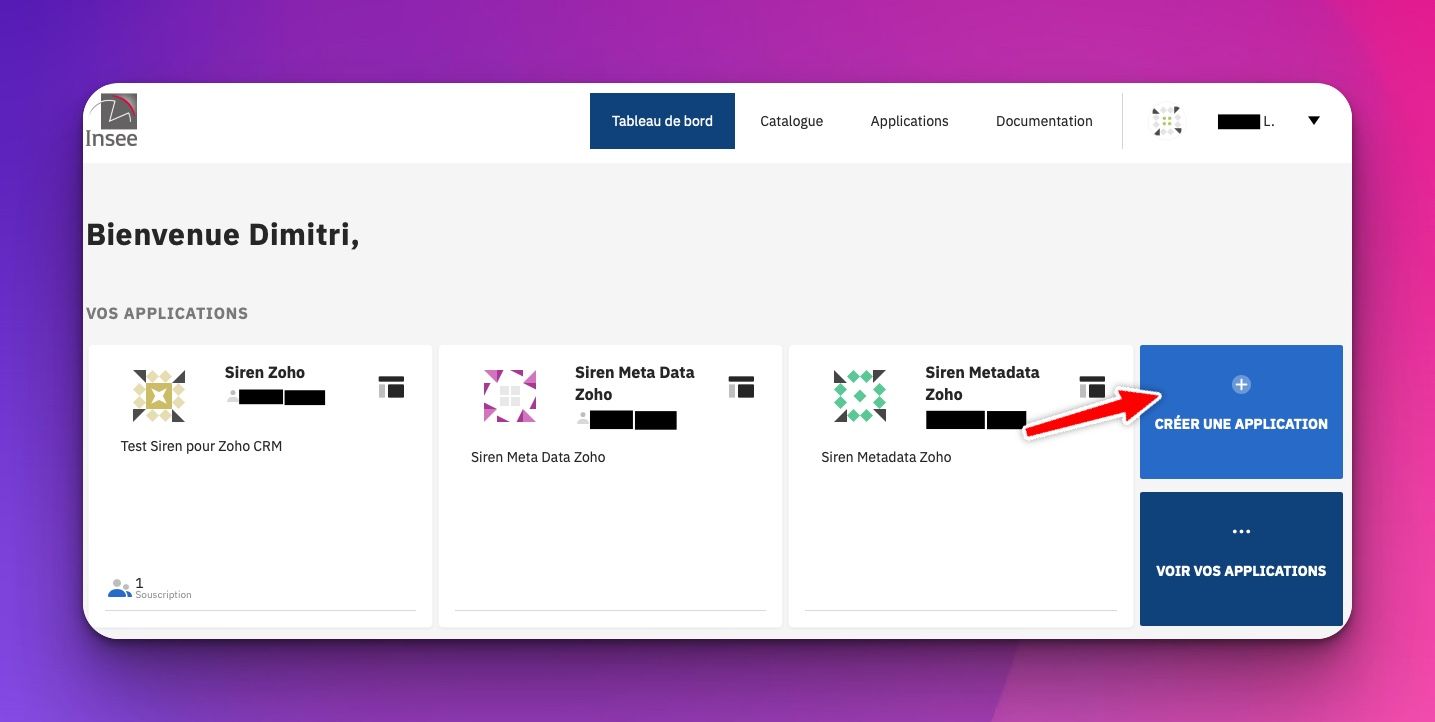
Click on the `Créer une Application` button

STEP 10

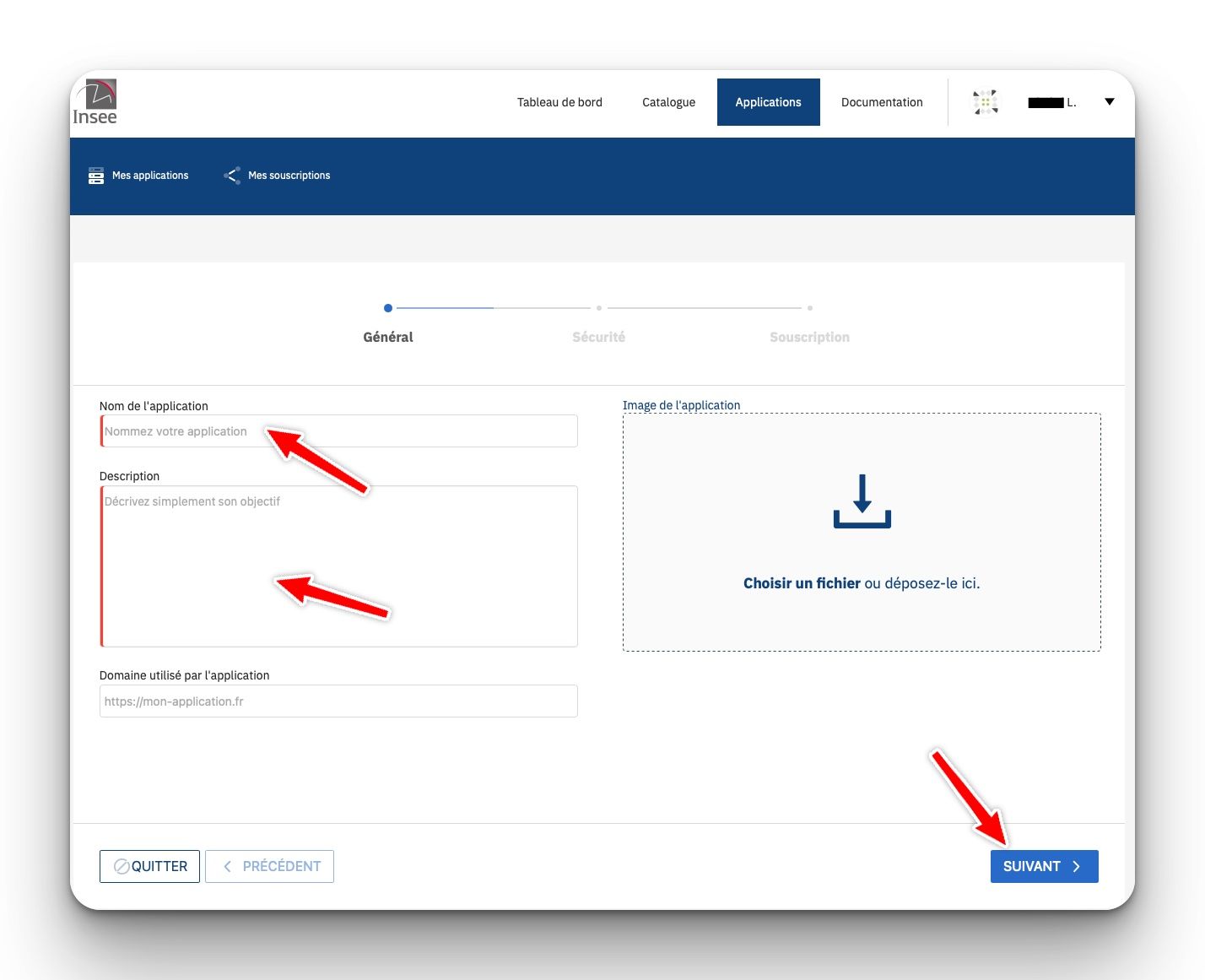
Follow the procedure.

Fields marked with a red border are required. Give a name and description (required) Once filled in, click on `Suivant`


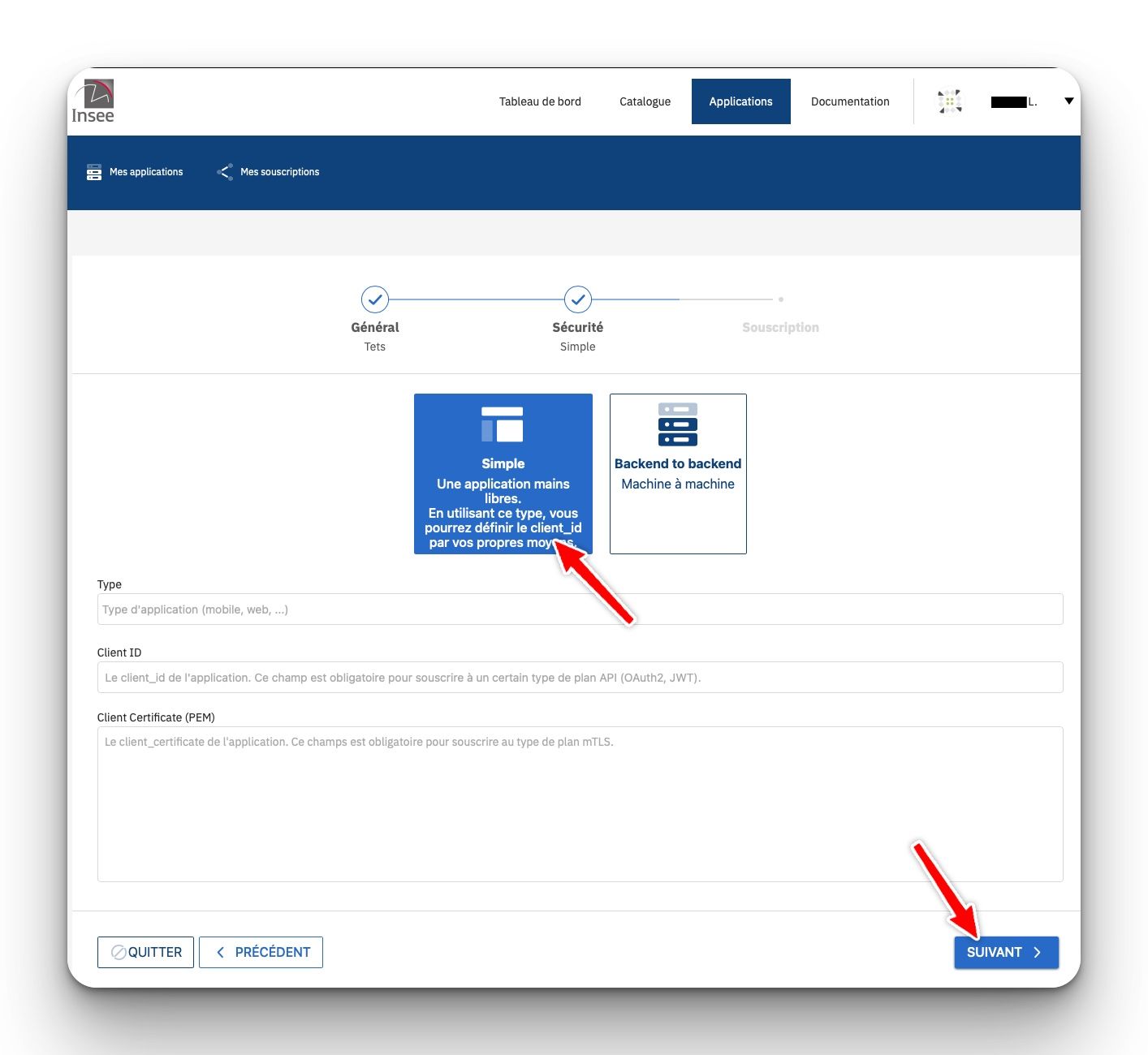
STEP 11

Choose `simple` creation mode
Once Choosen, click on `Suivant`

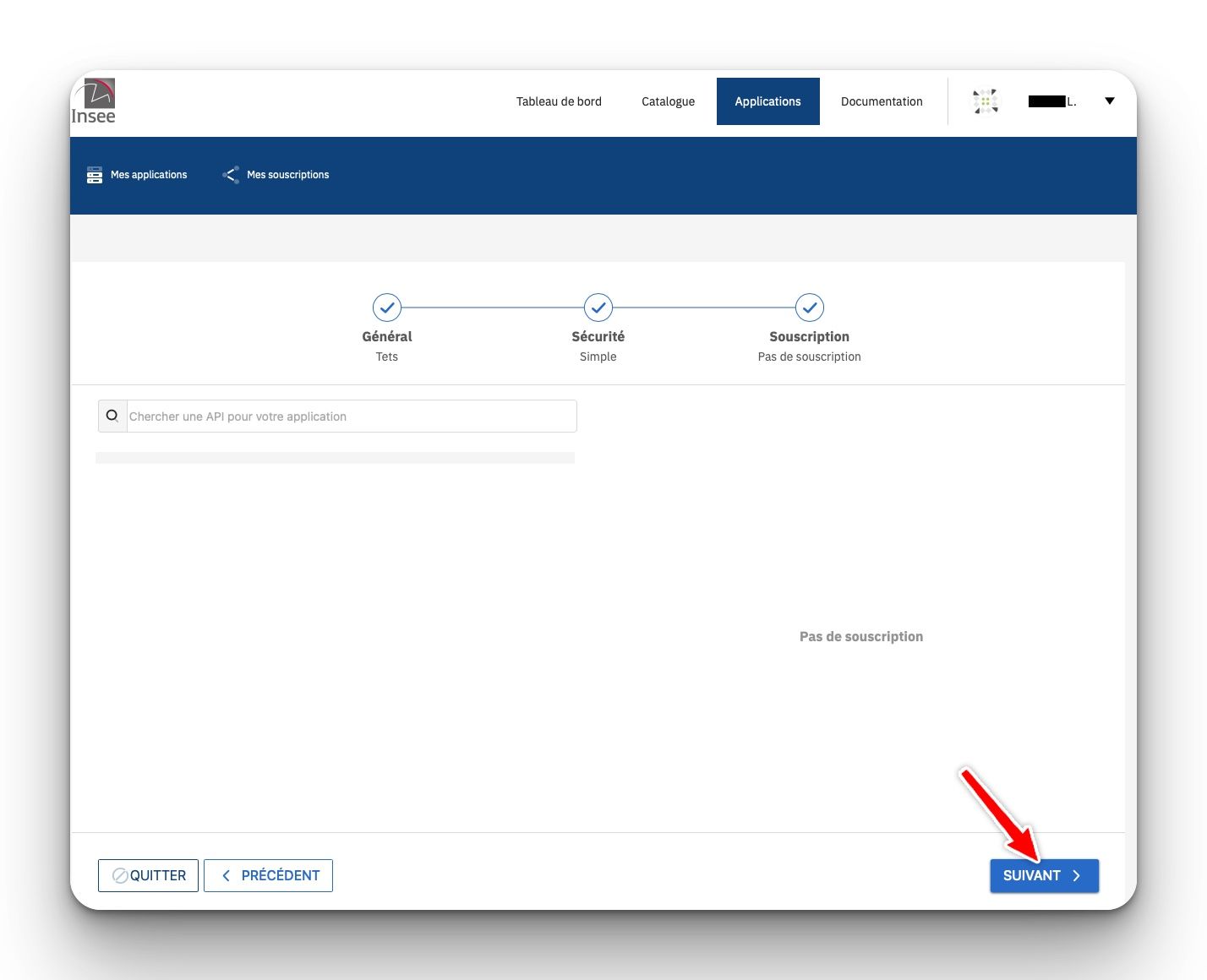
STEP 12

Leave the subscription page blank
Click on `Suivant`

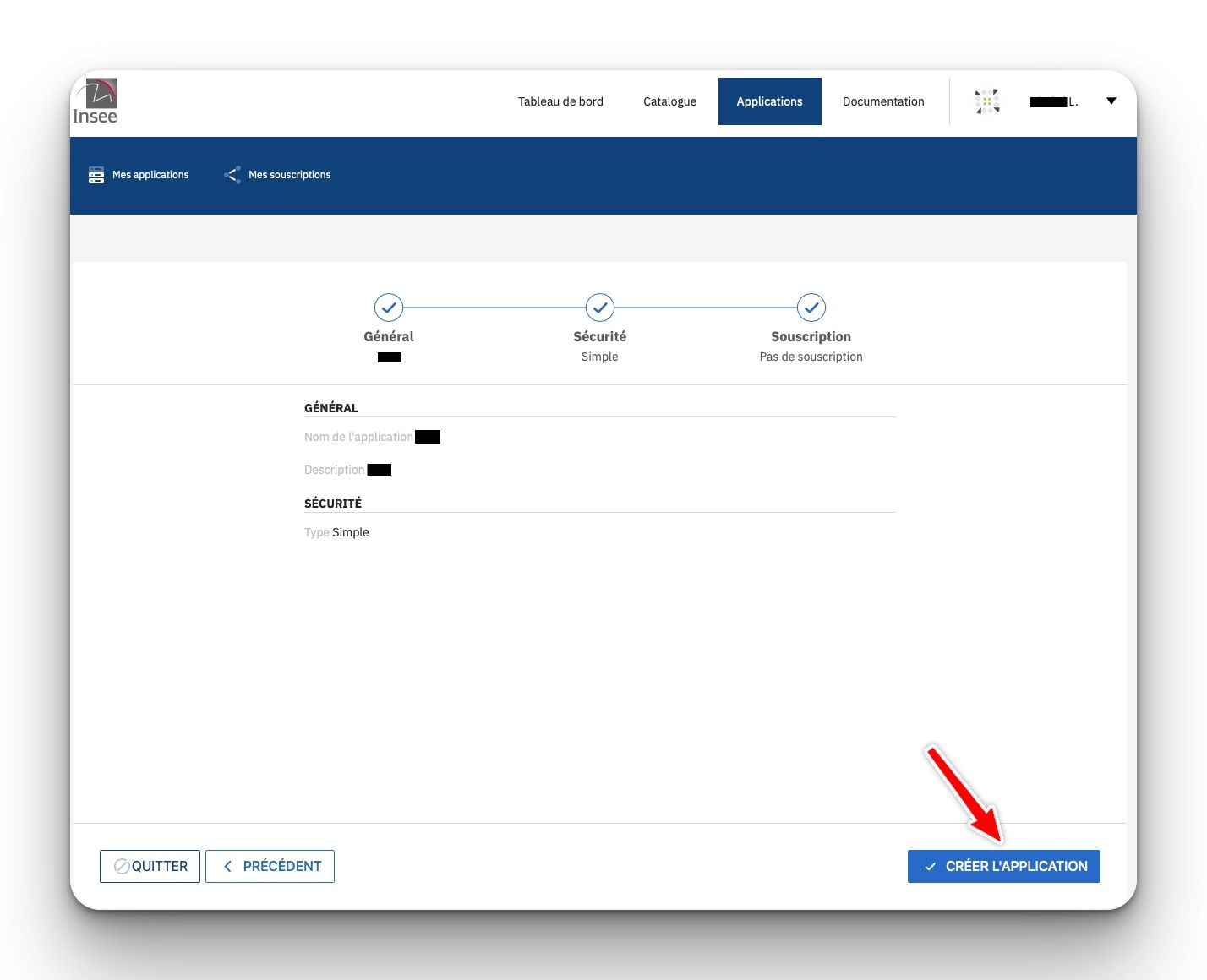
STEP 13

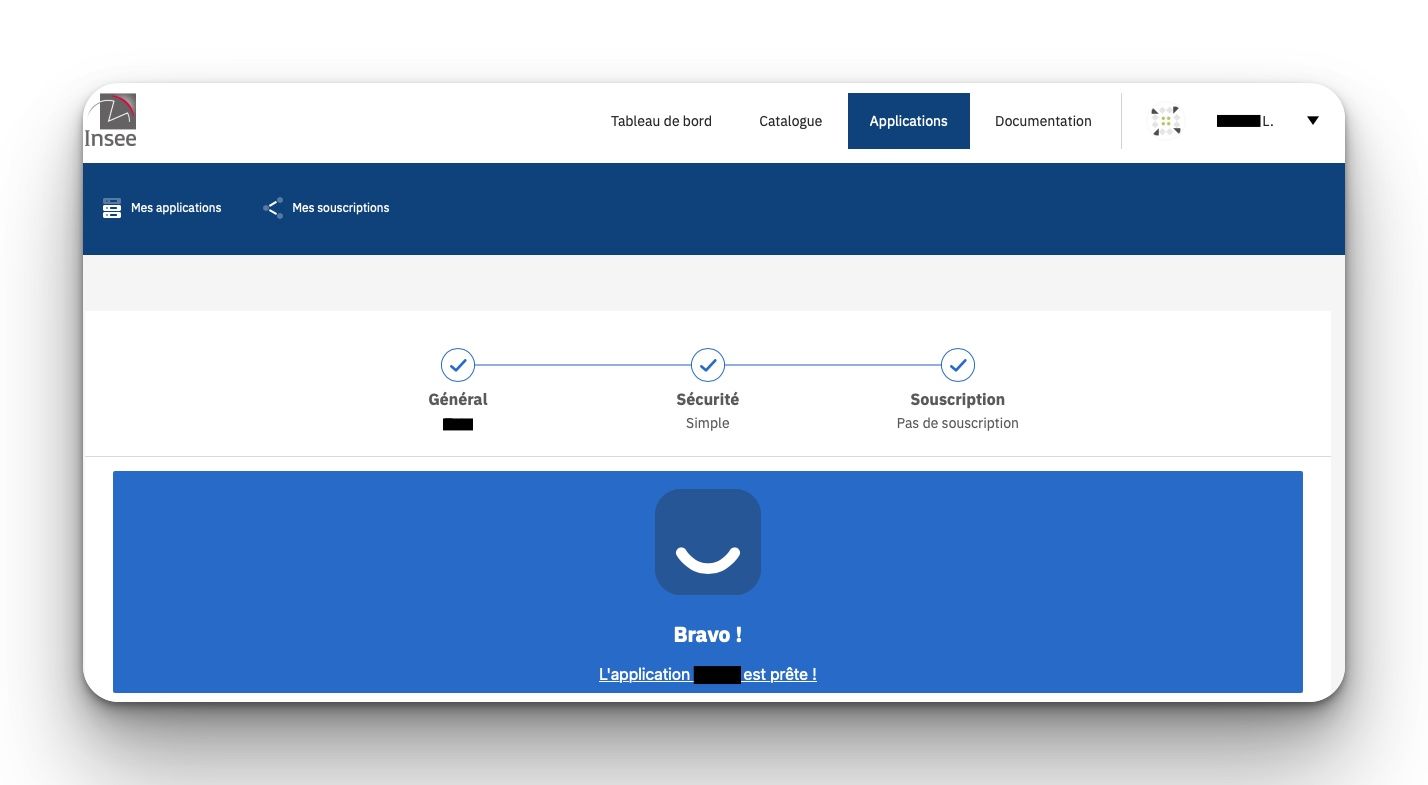
click on the `CRÉER L’APPLICATION` button in the summary

STEP 14

The application is created

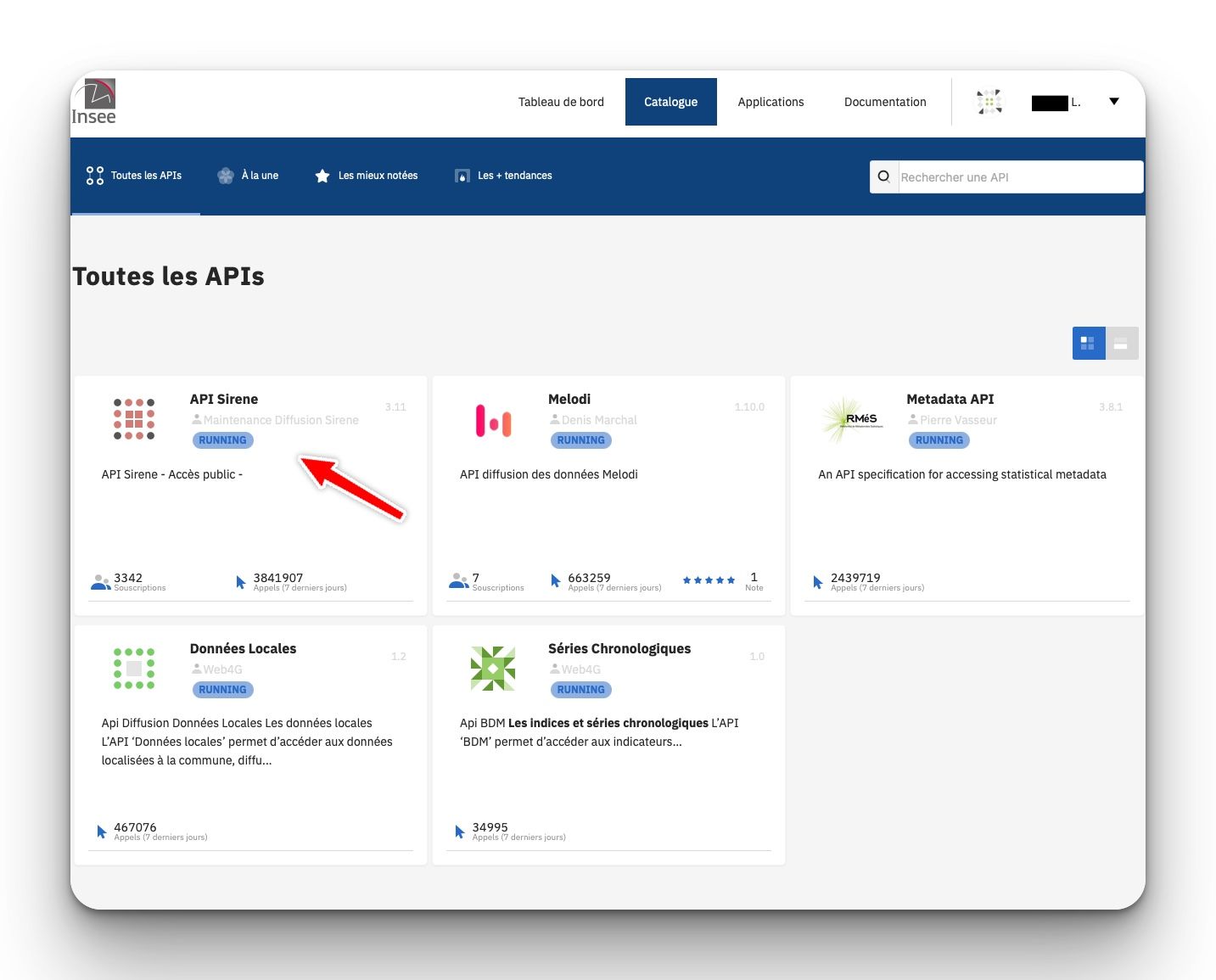
STEP 15

Go to Catalog > Sirene API

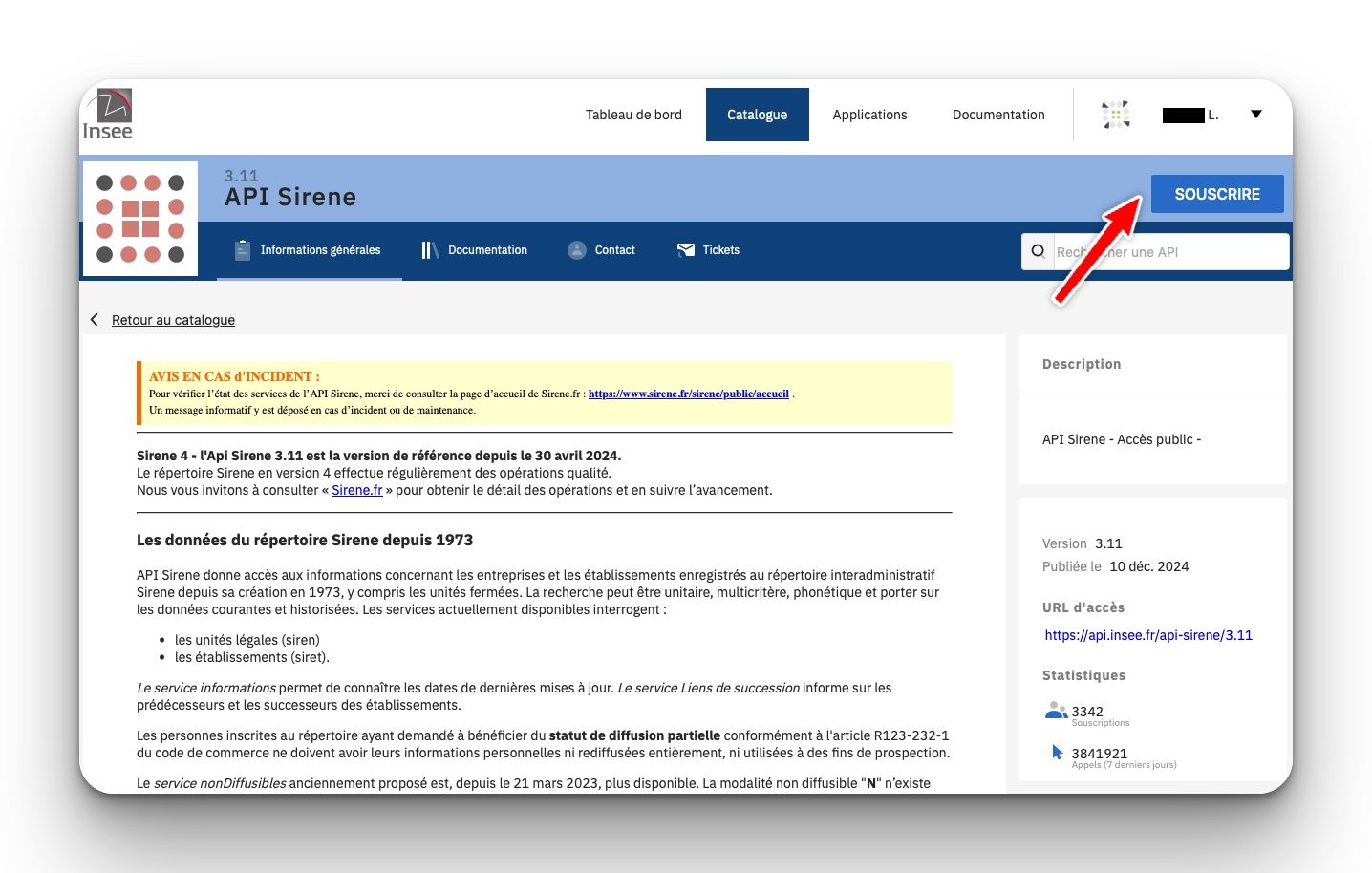
STEP 16

Click on `Souscrire`

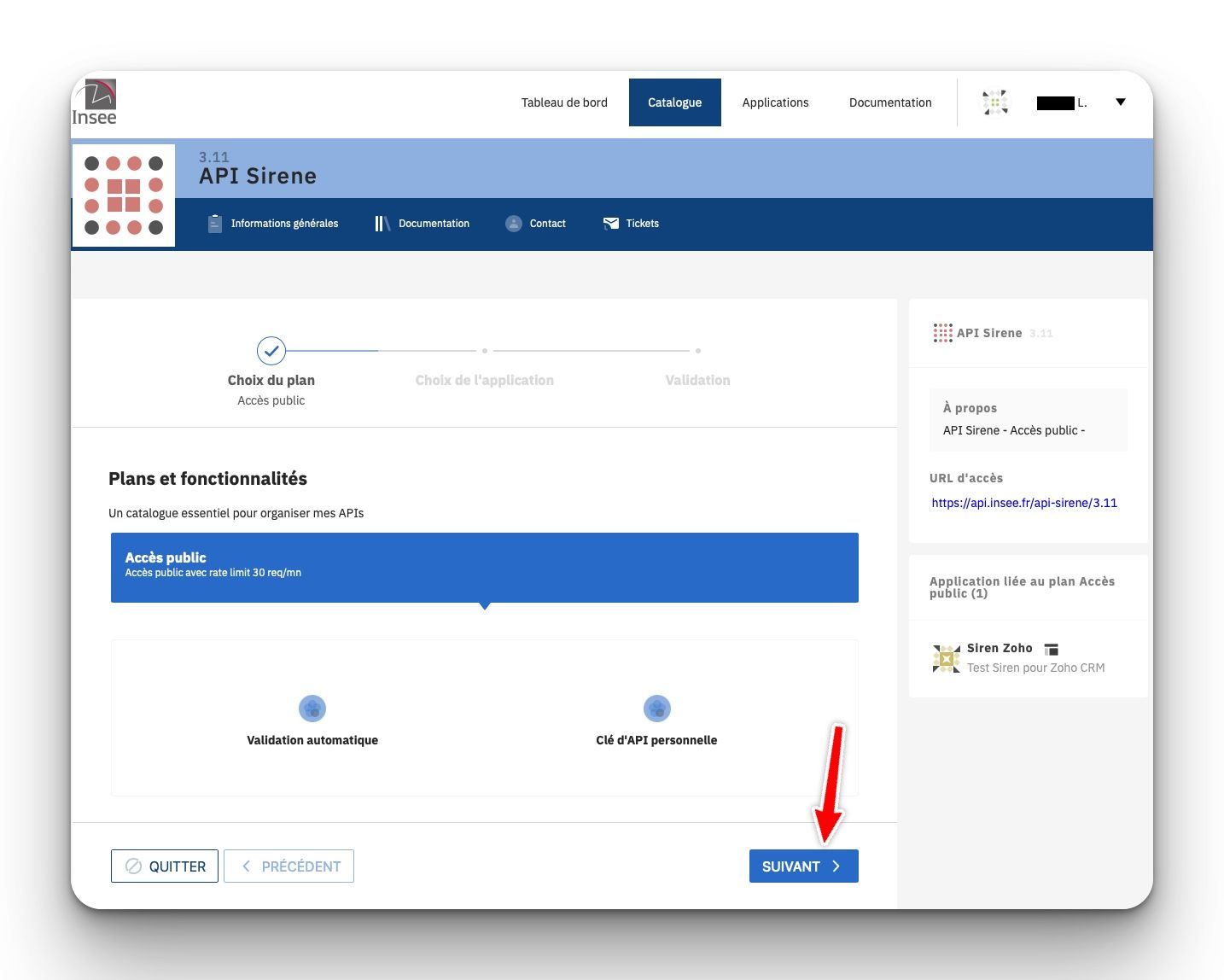
STEP 17

hoose the `Public` plan (the only one available).
Click on `Suivant`

STEP 18

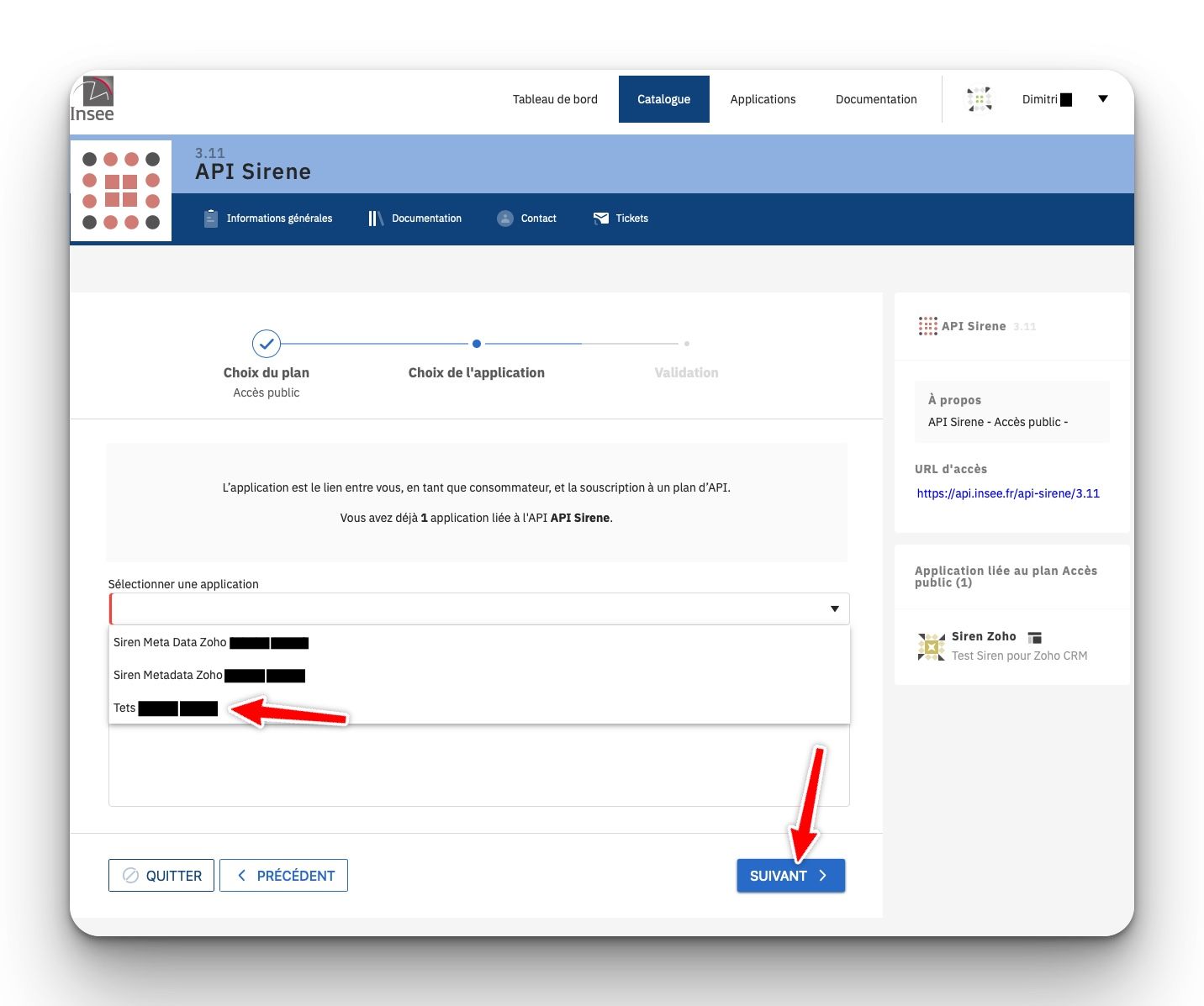
Select the application created earlier.
Click on `Suivant`

STEP 19

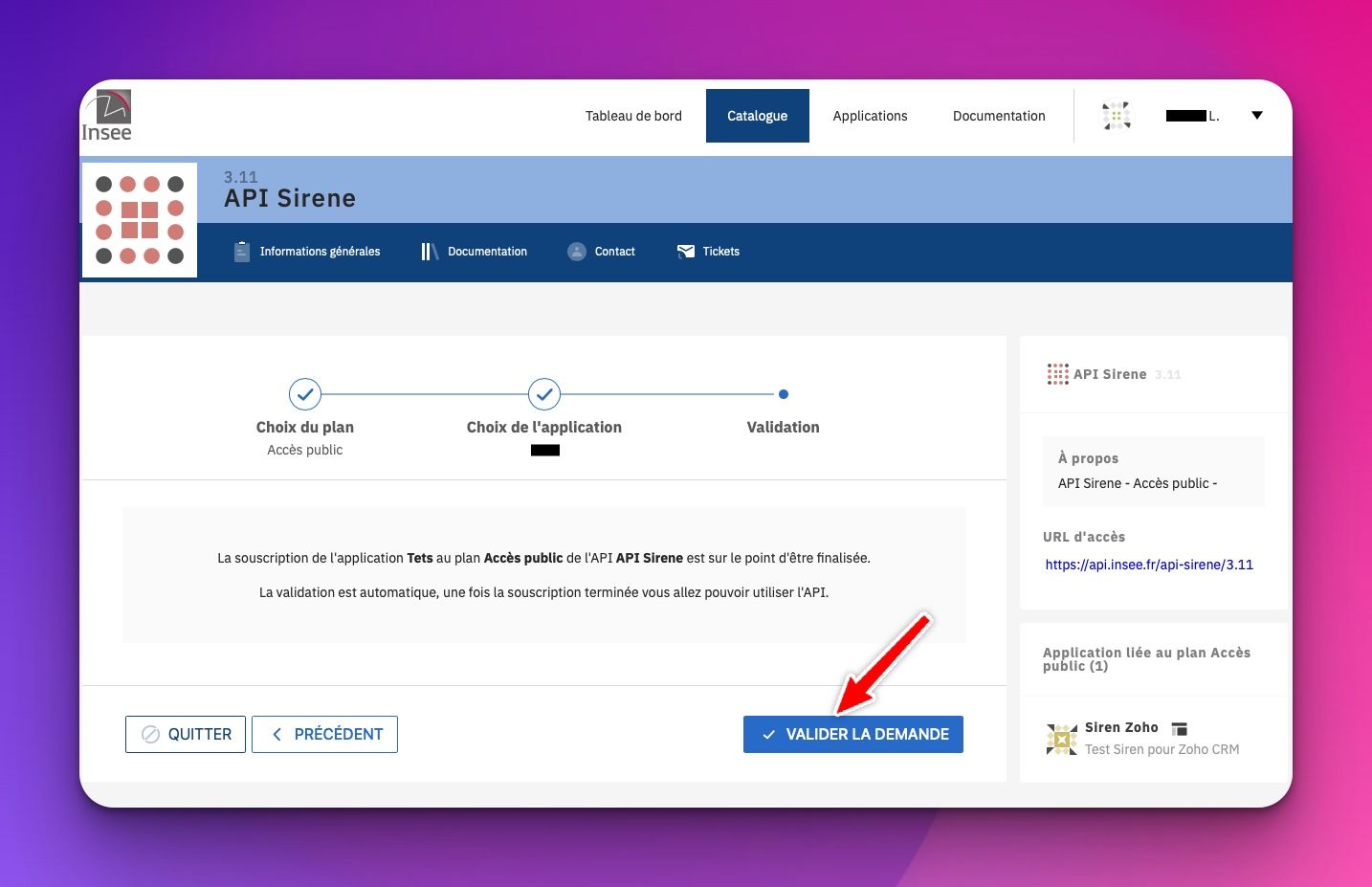
Click on `VALIDER LA DEMANDE`

STEP 20

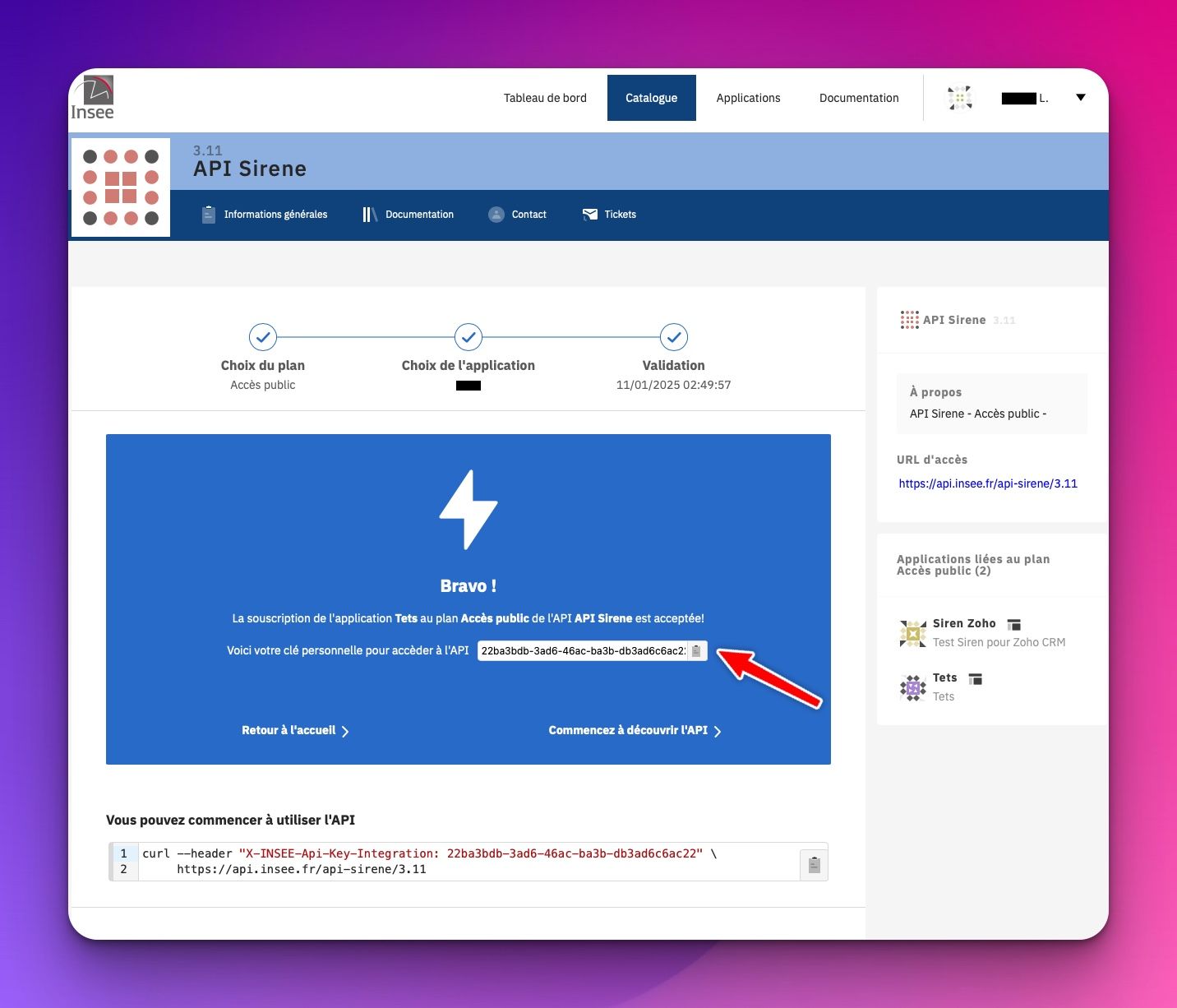
A key (API KEY) is then generated to connect to the API in public mode.

Vous pouvez copier la clé API en cliquant sur le You can copy the API key by clicking on the `Copy` button, and then paste it into the `Personnal Siren API Key` field in the `Lexolia SIREN-SIRET Extension for Zoho CRM` extension (Configure)


Installation de la clé API

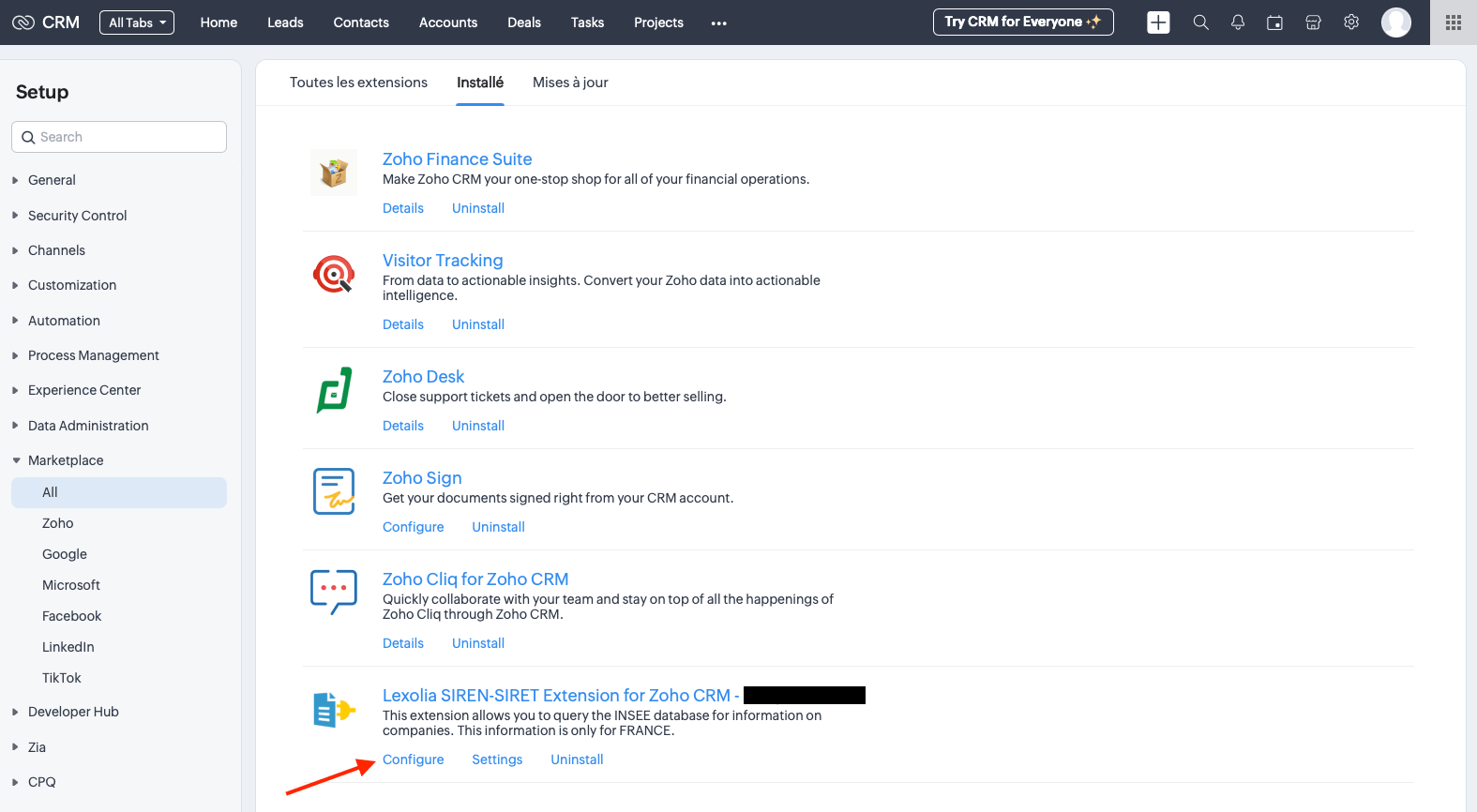
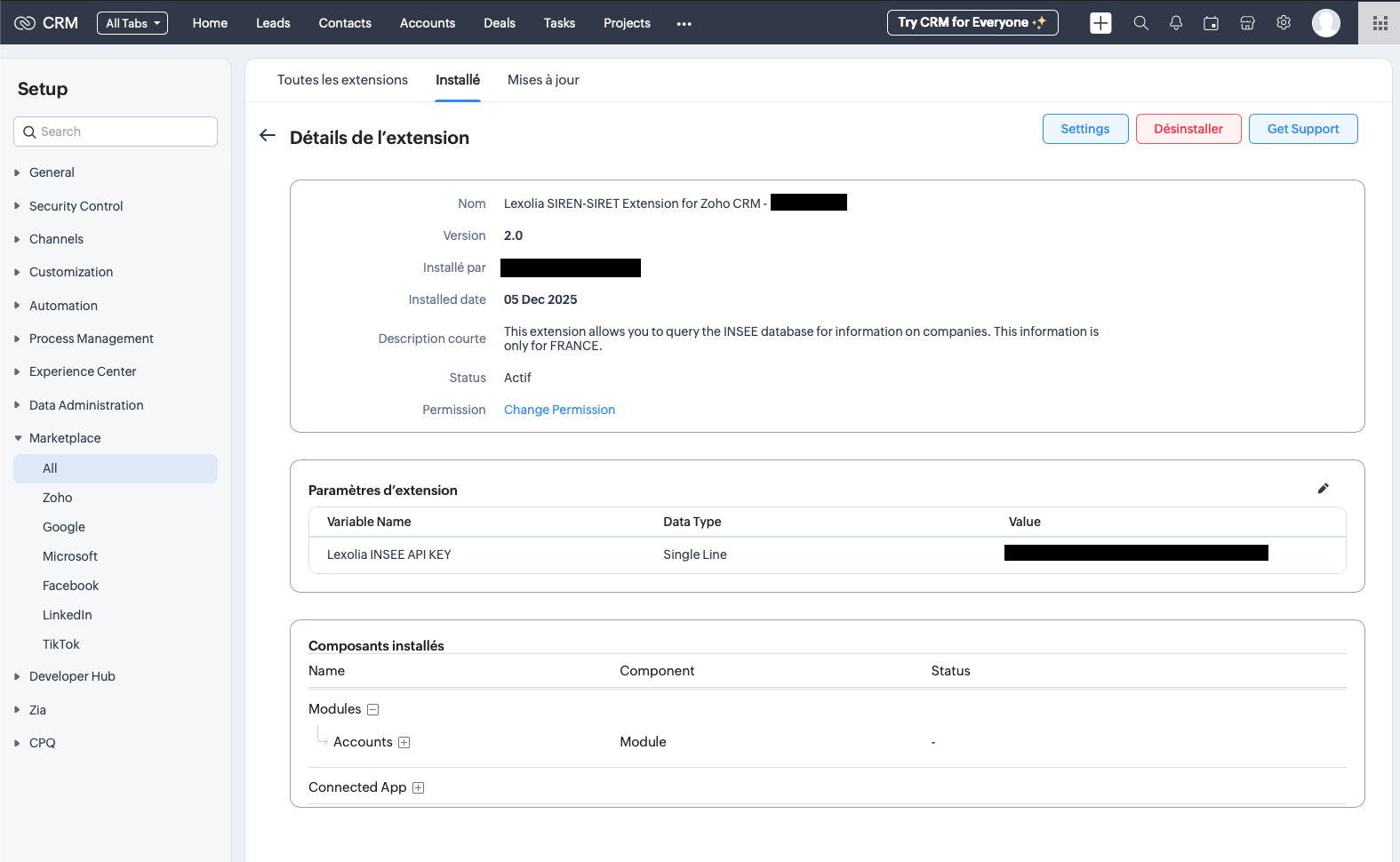
Click on the « Configure » link for the extension to access the extension settings.
Copy/paste the API KEY
You can copy the API key by clicking the `Copy` button, and then paste it into the `Lexolia INSEE API KEY` field in the `Lexolia SIREN-SIRET Extension for Zoho CRM` (Configure) extension.

Utilisation

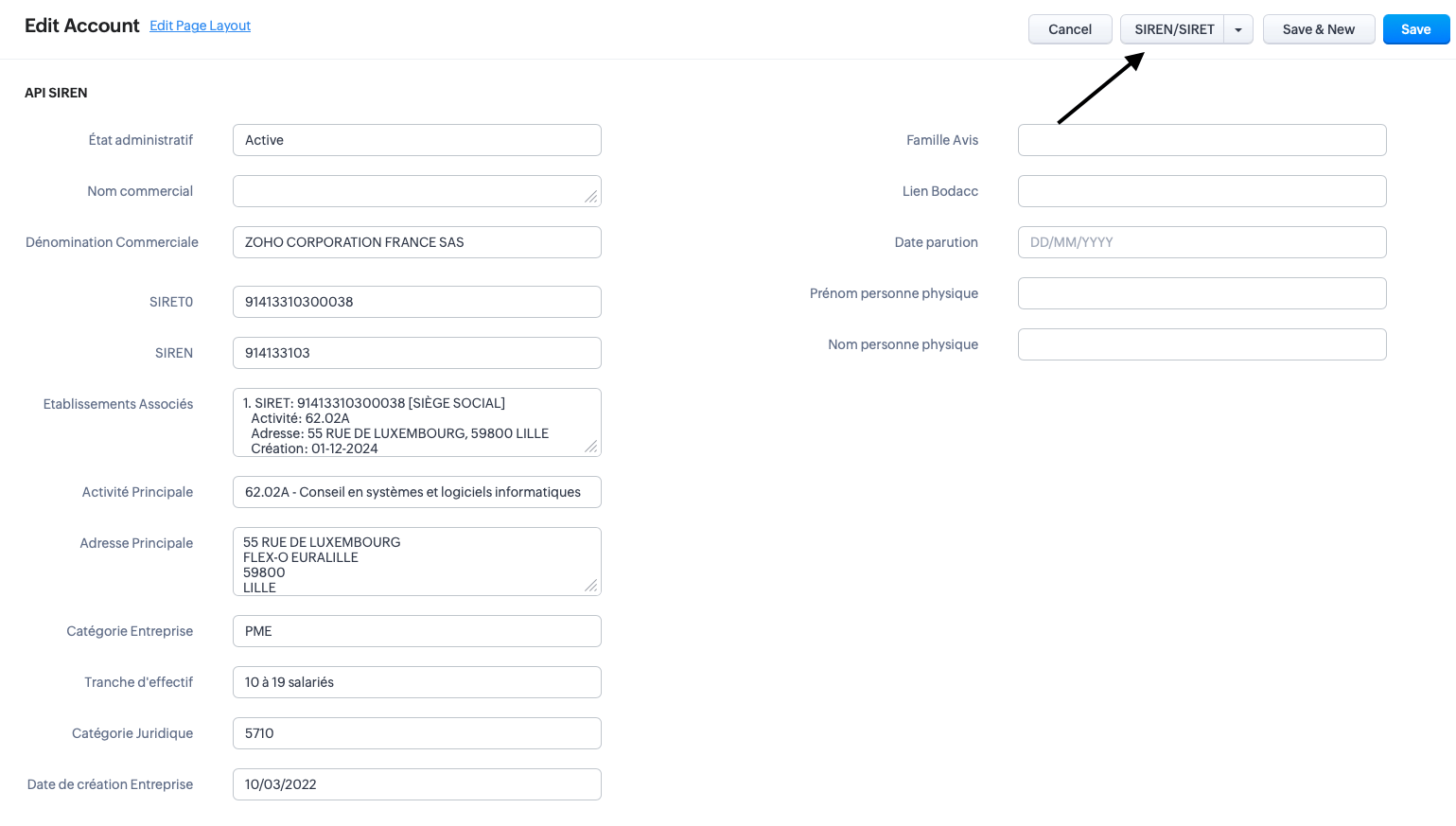
« SIREN/SIRET » button

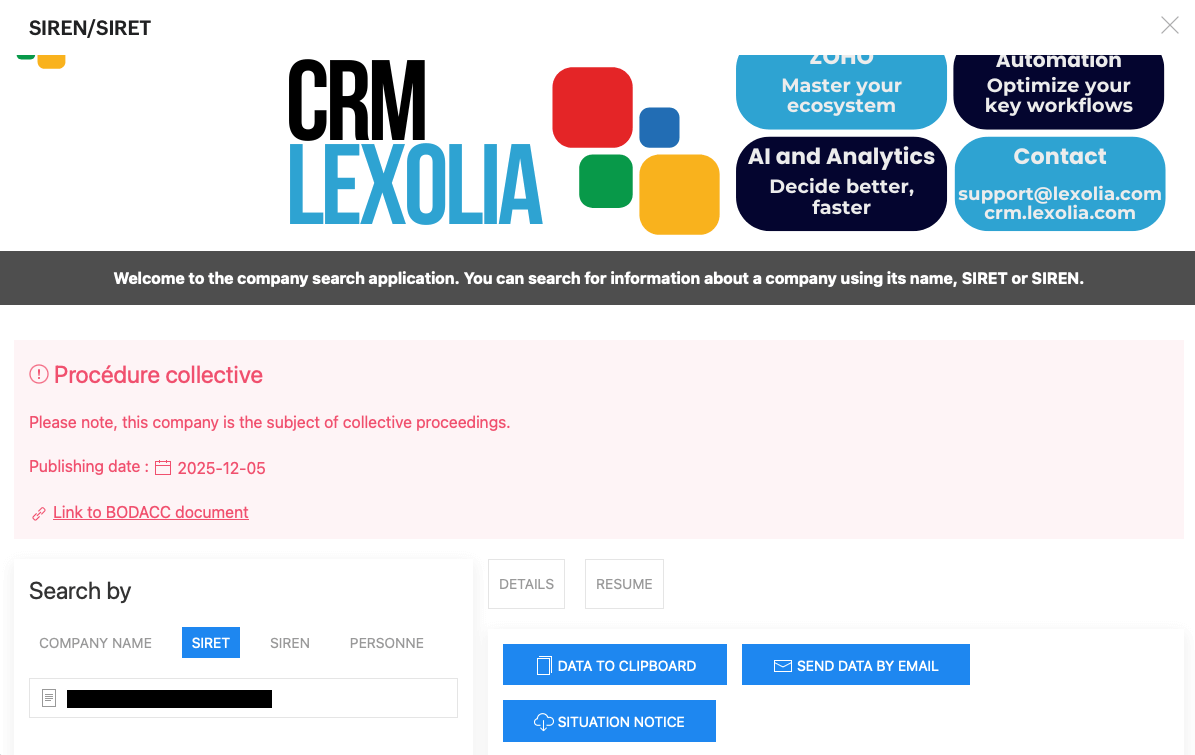
The « SIREN/SIRET » button is only found on the edit (or modify) page of the ACCOUNT you wish to modify. If you click on it, the extension popup will appear.

You can search by:
  • Name
  • SIRET
  • SIREN
  • Person 

The extension allows you to copy the found data to the clipboard: for copy/paste. You can also send the data by email; you will be asked for a recipient’s email address and a message. The email will then be sent with the data.
A « Summary » tab summarizes all the found establishments, sorted by:

  • Active
  • Closed

The « Head Office » establishment will be indicated.

The « Data to Clipboard » and « Send Data by Email » functions are also available for the « Summary » tab.

Data vers le CRM

If you click on the « DATA to CRM » button

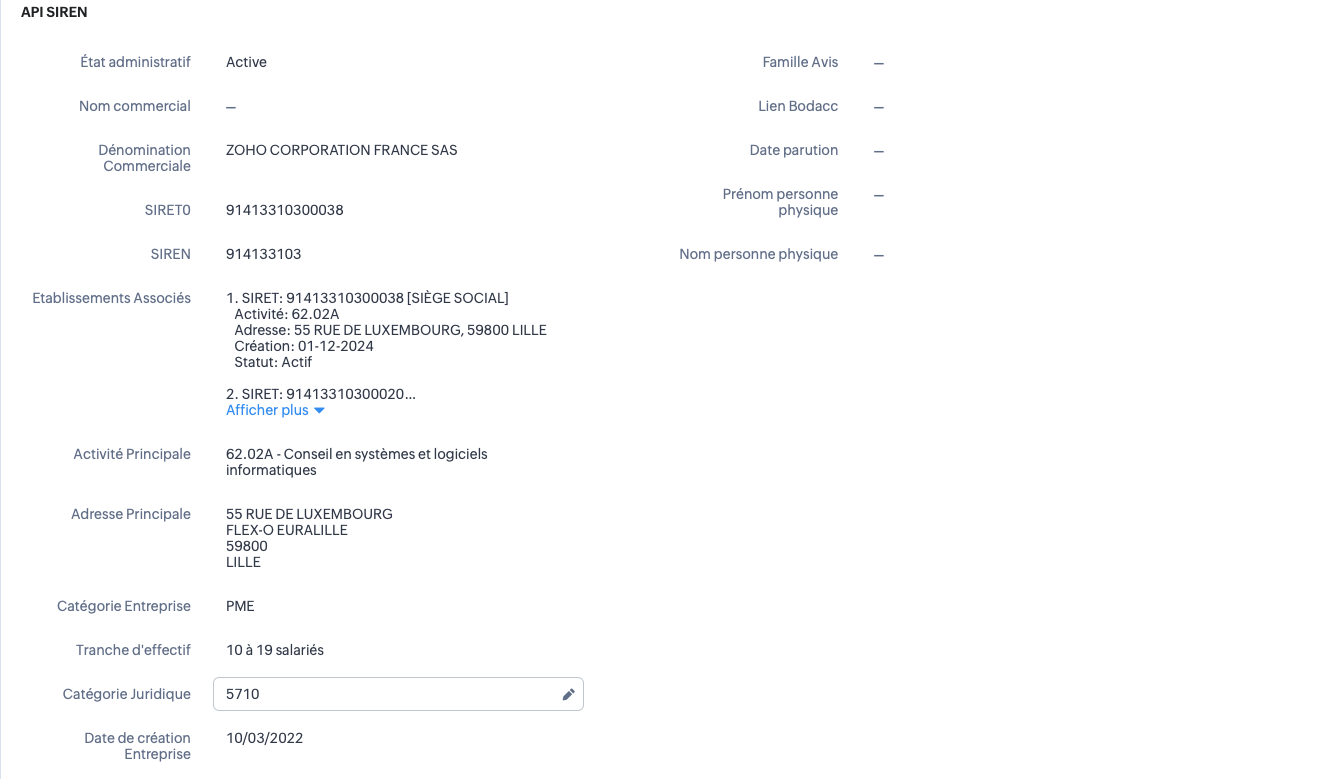
All data retrieved via the API will be copied into the corresponding fields. These fields were created during the extension installation.

Procédure collective

Establishment with judicial procedure

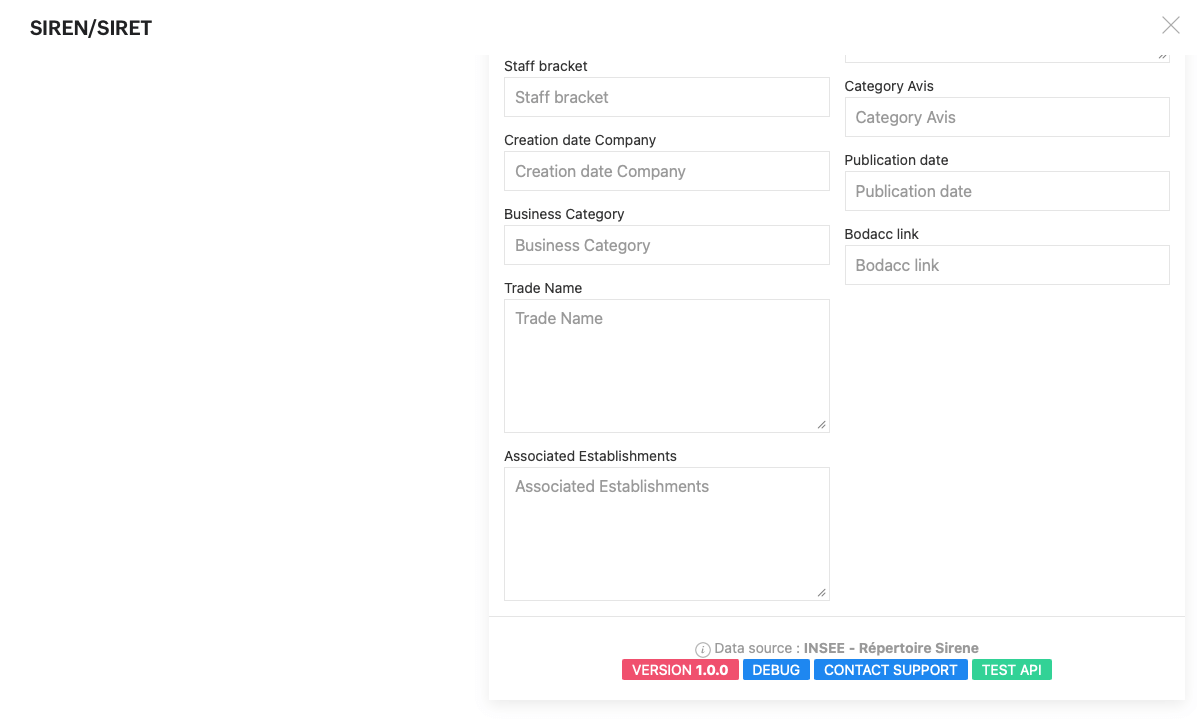
If an establishment is subject to proceedings, an alert will appear along with 3 pre-filled fields:
– Category Avis
– Publication date
– Bodacc link

Support & Debug

Support

You’ll find links in the extension’s popup footer.

  • Debug: More debugging details
  • Contact support: You can directly open a support ticket via the extension’s popup
  • API test: A test to validate your API key
Debug

Clicking the « Debug » button will give you access to more information about the extension’s configuration (version, etc.). You can also contact support with this information for assistance.